Useful keyboard shortcuts for Altium
In altium designer, there are two types of keyboard shortcuts.
I don’t know if they have names, but I think of them as being chords and riffs.
You are probably most familiar with chord style keyboard shortcuts, its when you press multiple keys at the same time to do something. For example, the keyboard shortcut CTRL-C to copy something. You press CTRL and c at the same time to trigger it.
In contrast, Altium also has several riff style keyboard shortcuts, which is where you press a number of keys in sequence. For example, pressing the sequence of keys t m in the PCB view resets error markers.
When I am telling you to press two keys at once, I will put a hyphen between them (e.g. CTRL-C) and when I am telling you to press two keys in sequence I will put a space btween them (e.g. j c)
Generally speaking almost all things you can do through context menus can be done with this type of keyboard shortcut. When you open one of these menus, you may notice that most options have one letter that is underlined. Pressing that letter next will use that option.
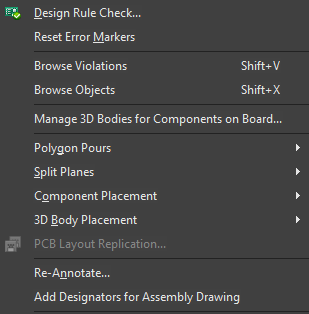
For example, in the tools menu pressing D will run a design rule check, and pressing M resets error markers.
EDIT: Found out later that Altium refers to these as “Accelerator Keys”. Which I think is a bad name I like my one better.
In the Schematic Editor.
In the PCB editor.
Misc
- Press
3to enter 3D view 1- Press
2to go back to 2D view
- Press
- Press
Qto swap between mils and millimeters. - Press
Gto change your snap grid size.
1 Did you know that you can move designators around in 3D view? Very useful to see where you are putting them more clearly!
Alignment
CTRL-SHIFT-T: This aligns all components to the top
In both
The function keys